
Adaptors you might need!
HDMI To DVI:
Display Port To VGA:
Display Port To DVI:
Disclaimer: Some links are affiliate links. As an Amazon Associate, I earn from qualifying purchases.
(((ALSO CHECK OUT MY GAMING COMPUTER BUILD GUIDE FOR 2024!)))
Recreational: $500-$600 (good for casual gameplay with less demanding games)
Motherboard
CPU
GPU
RAM
Power
SSD
Case
CPU Cooling (Included With CPU)
Case Fans (Included With Case)
Everyday Gamer: $900-$1,100 (great for the everyday gamer who wants to play everything without breaking the bank)
Motherboard
CPU
GPU
RAM
Power
SSD
Case
CPU Cooling: (Included With CPU)
Case Fans (Included With Case)
Limit Breaker: $1,400-$1,600 (Ideal for those who take gaming a little more seriously and want to push their gaming experience to the next level)
Motherboard
CPU
GPU
RAM
Power
SSD
Case
CPU Cooling
Case Fans (Included with Case)
Streamer: $2,000-2,200 (Ready to start your streaming career? This is a solid base for your streaming setup)
Motherboard
CPU
GPU
RAM
Power
SSD
Case
CPU Cooling
Case Fans (Included With Case)
Pro Gamer: $3,800-$4,100 (For the hardcore gaming enthusiasts who will settle for nothing but the best, also a great build to future-proof your system for 5+ years)
Motherboard
CPU
GPU
RAM (Buy 2 For Full Build)
Power
SSD
Case
CPU Cooling
Case Fans (Included With Case)
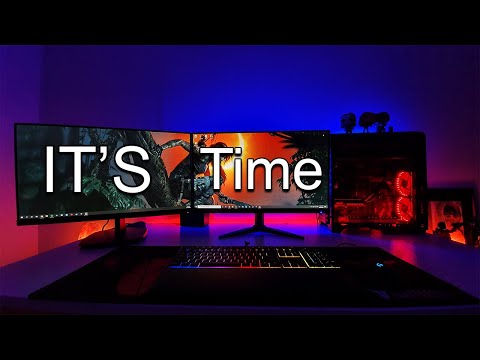
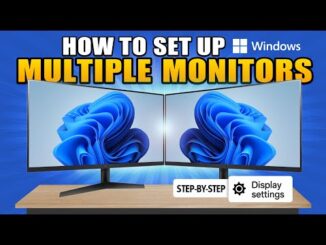
Unlock the full potential of your productivity with this comprehensive guide to setting up dual monitors on Windows 11! In this video, we’ll walk you through the step-by-step process of expanding your desktop real estate and creating a multi-monitor setup that maximizes efficiency and convenience.
Join us as we explore the benefits of using dual monitors for work, gaming, content creation, and more. From increased screen real estate to improved multitasking capabilities, dual monitors offer a seamless and immersive computing experience that enhances productivity and creativity.
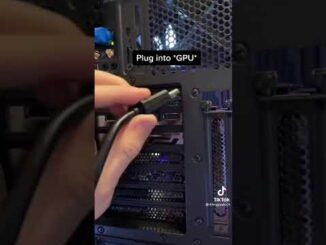
Discover how to connect and configure two monitors to your Windows 11 PC, whether you’re using identical displays or a combination of different resolutions and orientations. We’ll cover everything from hardware connections to software settings, ensuring a smooth and hassle-free setup process.
Learn how to customize your display settings to optimize your dual monitor setup for your specific workflow and preferences. Whether you prefer extended desktop mode for seamless multitasking or duplicate display mode for presentations and collaboration, Windows 11 offers a range of options to suit your needs.
Through easy-to-follow tutorials and practical tips, we’ll empower you to take control of your workspace and harness the full potential of dual monitors on Windows 11. Say goodbye to cluttered screens and limited workspace – it’s time to elevate your computing experience with a dual monitor setup!
Don’t miss out on this essential guide to setting up dual monitors on Windows 11. Hit play now and transform your workstation into a productivity powerhouse!
No luck for me. Both screens show the same display and the other isn’t recognized
Is it possible to run a dual monitor set up on a ps5 not just using a hdmi splitter but actually using two smaller monitors as one larger one?
goated
for my second monitor its plugged in but when i press detect it doesnt work?
Thank you this was helpful!!!