
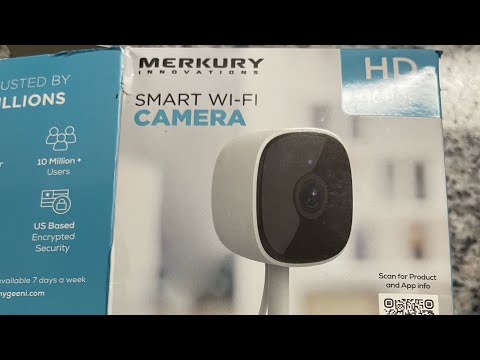
#merkury #wificamera #geeni
Like subscribe share 🙏🏾
* If the apps says the camera cant be viewed just sign out your account and sign back in. And anytime you update or make a change *
The video below is YouTuber Jj1807 where you can find the correct app
You must be connected to a 2.4ghz connection for this setup to work
Open you Wi-Fi setting app here’s the one for cox (
Go to your settings and you should see 2 networks . They may have the same name which I would suggest changing to make it easier to connect
2.4ghz
5.0 ghz
Once you’ve done that , go into the app add device scan the we code on the app with the camera and wait for the ding . Once it’s finished that step it’ll go to connecting where you’ll hear a shutter and then it’s smooth sailing there on out .
It may say the camera cant be viewed just sogn out and sign back in
Fell free to contact me with any questions ..
Please like and subscribe and also check out some of my drum content thanks 🙏🏾.

im at the update step and i dont think it ever updates for me because when im on the home screen on the app it says the camera is offline and iv reset it and repaired it multiple times and i still got nothing
The new 1080p Murkury indoor camera no longer uses the Geeni app; instead, it utilizes the new Murkury app. I did not have any problems connecting to the Wi-Fi, and I took a guess that it was a 2.4 GHz network that I had.
Mine won’t send me notifications
Mine worked until I moved reset it and tried to reconnect and it will not scan the code the 5g is fine it will not scan the code it will not use the alt option idfgi
It won’t record no longer than 20 seconds. How do I record longer?